You have a spreadsheet with 200 rows of customer feedback, product titles, or survey answers, and the same ChatGPT prompt needs to run against every single one — "classify the sentiment," "translate this to Spanish," "write a one-line summary." Doing that by hand means 200 round trips of copy, paste, wait, copy the answer back. It's the kind of task that's exactly right for automation and exactly wrong to do manually.
This guide covers real use cases for batch-processing spreadsheet rows with ChatGPT, the failure mode to check for before you trust a tool with your data, and how to set up your first batch run.
Why copy-pasting one row at a time doesn't scale
At 30 seconds per row — read the cell, paste the prompt, wait for the answer, copy it back — 200 rows is nearly two hours of repetitive, error-prone busywork. Miss a row, paste into the wrong cell, or lose your place halfway through, and you're redoing sections of it. A batch workflow applies one prompt template to every row automatically and writes the results back next to the source data.
Real-world use cases
- Sentiment analysis on customer feedback. Run every row of a feedback export through a "classify as positive/negative/neutral" prompt instead of reading each response manually.
- Categorizing survey responses. Tag open-ended answers into predefined buckets in bulk.
- Generating product descriptions. Turn a spreadsheet of bare product names and specs into full marketplace-ready descriptions, row by row.
- Translating title lists. Run the same "translate to [language]" instruction across a full column of titles or headlines for multiple target languages at once.
- SEO content prep. Generate meta descriptions or article outlines in bulk from a list of target keywords.
What can go wrong with AI-for-Excel tools
Not every tool that promises to "add AI to your spreadsheet" actually delivers reliably. One low-rated AI Excel assistant collected a run of near-identical 1-star complaints, and the pattern is worth reading before you commit hours of a real workflow to any batch tool:
"Does not work. At all. Tried many times and all it says is generating.... then nothing." — 1-star review of an AI Excel extension
"Just stays stuck in 'Writing Formula' no matter what you ask. Doesn't work at all even for basic commands." — 1-star review, same extension
When a tool gets permanently stuck mid-task with no error message and no way to tell if it's still working, that's worse than doing the row manually — you've lost the time and you still don't have an answer. Before trusting any batch-AI tool with a real dataset, run a small test batch (5-10 rows) first and confirm every row actually completes with a result, not just a spinner.
Credits and quota math: budget before you run a big batch
Batch processing multiplies your usage fast — 200 rows means roughly 200 individual ChatGPT calls, not one. Reviewers of a popular AI-for-spreadsheets tool flagged exactly this trade-off even when they liked the feature itself:
"I like this feature but man does it use up all of your credits in just one request." — 4-star review of a Google Sheets AI add-on
Before you queue a large batch: check how usage/quota is measured (per row, per token, or a flat monthly cap), start with a smaller test batch to estimate the cost of your specific prompt length, and factor in that longer source content per row (long feedback text vs. a short product title) uses more of your quota per row.
Step-by-step: your first batch task
ChatGPT Batch Tasks for Excel runs your prompt across every row in a simple task table — prompt, source content, and result side by side — instead of a separate spreadsheet-import wizard.
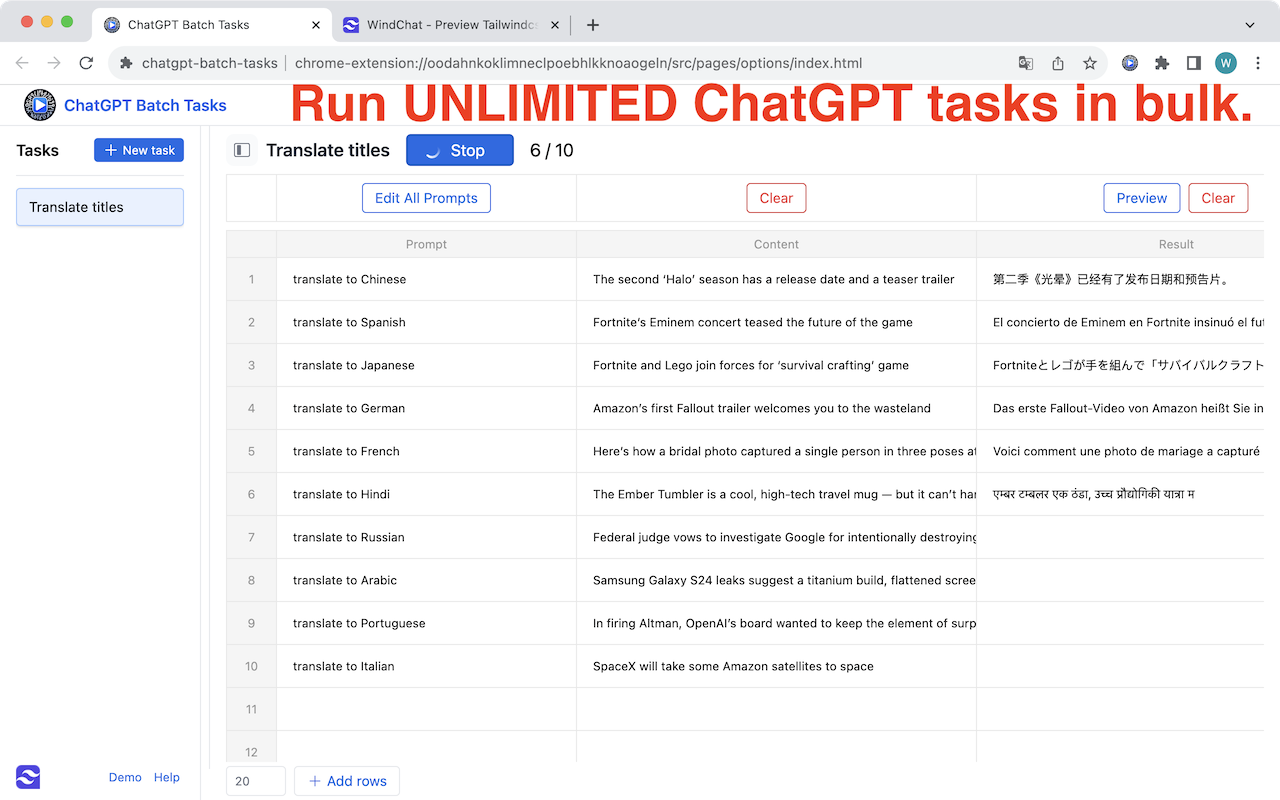
- Click New task and give it a name, like "Translate titles" or "Sentiment on feedback."
- Add your rows — paste in your source content (titles, feedback text, product names) one per row, using Add rows to size the table to your dataset.
- Set the prompt for the task (or edit prompts per row with Edit All Prompts if different rows need slightly different instructions).
- Run the task and watch the Result column fill in row by row, with a running progress counter.
- Use Preview to sanity-check a result before running the full batch, and Clear to reset a task you want to rerun with a different prompt.
Manual vs. batch: the honest comparison
| Step | Manual (row by row) | Batch task extension |
|---|---|---|
| Setup | None | Create task, paste rows |
| Time for 200 rows | ~1.5-2 hours of copy/paste | Minutes, runs unattended |
| Consistency | Varies by attention/fatigue | Same prompt applied to every row |
| Error recovery | Redo from where you lost track | Rerun/preview individual rows |
| Quota usage | Same total calls, just manual | Same total calls, automated |
Troubleshooting checklist before you trust a batch tool with real data
- Run a 5-10 row test batch first — confirm every row completes with an actual result, not an infinite "generating" state.
- Check whether the tool shows per-row progress (like "6 / 10") so you can tell if it's stalled versus still working.
- Review a sample of results for accuracy before publishing or exporting them — batch AI output still needs a human pass, especially for anything customer-facing.
- Understand your usage/quota model before queuing a large batch, so a 500-row job doesn't quietly burn a month's allowance.
The bottom line
Running the same prompt across every row of a spreadsheet is a textbook case for automation, but the category has real trust issues — tools that stall mid-task or burn through quota without warning turn "save time" into "lose more time." Test small, watch for stuck progress, and budget your quota before you commit a full dataset to any batch-AI workflow.