If you use ChatGPT for anything you do more than once — a code review checklist, a weekly report outline, a customer email template — you've probably typed the same instructions into the prompt box a dozen times. A ChatGPT prompt manager is supposed to fix that: save the prompt once, reuse it forever. The problem is that a lot of the popular options only give you a taste of that before asking you to pay, and the way they ask has become a real trust issue in the reviews.
This guide covers what a prompt manager should include, the paywall patterns to check before you install one, and how to set up a reusable prompt library in a couple of minutes.
Why pricing and limits should be clear before you commit
A prompt is a text file. Saving, tagging, and reinserting it are the core job, so folder and prompt limits should be visible before installation. Yet across the most-reviewed ChatGPT organizer extensions, a consistent complaint shows up: the entry tier is capped so low that users only discover the limit after setup.
"Free version only allows about 4 or 5 folders, making it unusable even as a trial." — 1-star review of a popular ChatGPT folder extension
"Everything that's useful is locked behind a paywall." — 1-star review of a popular ChatGPT toolbox extension
When close to a third of an extension's 1-star reviews mention the same paywall complaint, that's not an edge case — it's the default experience for anyone who doesn't pay on day one.
The subscription cancellation trap
Prompt managers ask for a recurring card charge, and recurring charges are exactly where the reviews get ugly. This is worth checking before you hand over a card number, not after:
"Charged me for another year despite my explicit request to cancel beforehand." — 1-star review of a popular ChatGPT productivity extension
"It's impossible to cancel this if you happen to sign up, so be aware." — 1-star review, same extension
Before installing any prompt tool that asks for payment, look specifically for: a visible "manage subscription" or "cancel" control inside the extension itself (not just a link to an external site), a stated refund policy, and recent reviews mentioning billing — not just star ratings, which can be skewed by incentivized reviews.
What a good prompt manager should actually do
Strip away the marketing and a prompt manager needs to nail four things:
- Save instantly — one click from inside ChatGPT, no separate app to open.
- Organize — folders or tags so "SEO prompts" and "code review prompts" don't end up in the same undifferentiated pile.
- Reuse fast — insert a saved prompt into the chat box without retyping or reformatting it.
- Handle variables — the same prompt template with a different subject each time (a recipe name, a customer name, a topic) instead of duplicating near-identical prompts.
That last one is the feature many basic tools skip because it takes more than "save a text blob" — and it's also the difference between a prompt list and a real prompt library.
How ChatGPT Prompts Manager handles this
ChatGPT Prompts Manager adds a "Prompts Manage" folder directly into the ChatGPT sidebar, so your library lives right next to your chat history instead of in a separate popup you have to remember to open.
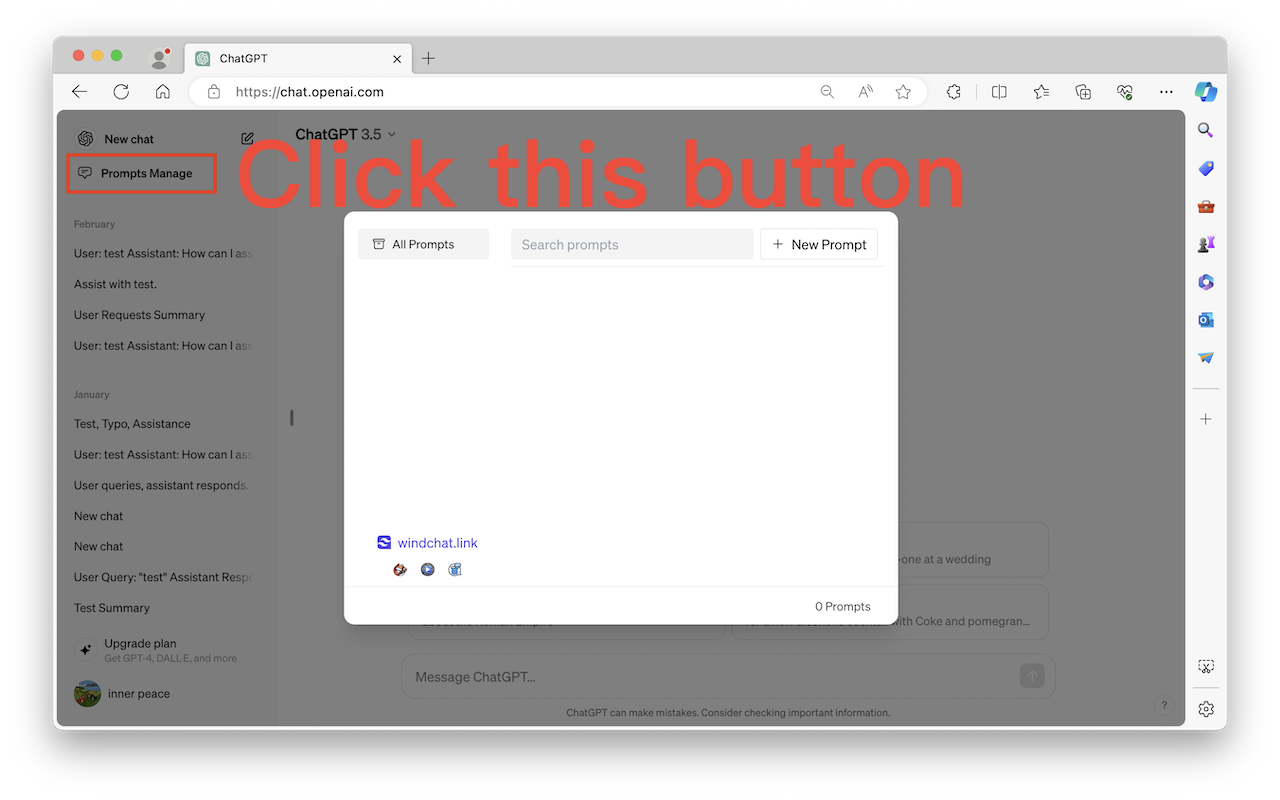
- Prompt library built into ChatGPT's sidebar — a dedicated "Prompts Manage" entry sits above your regular chat list, with All Prompts, a search box, and a New Prompt button.
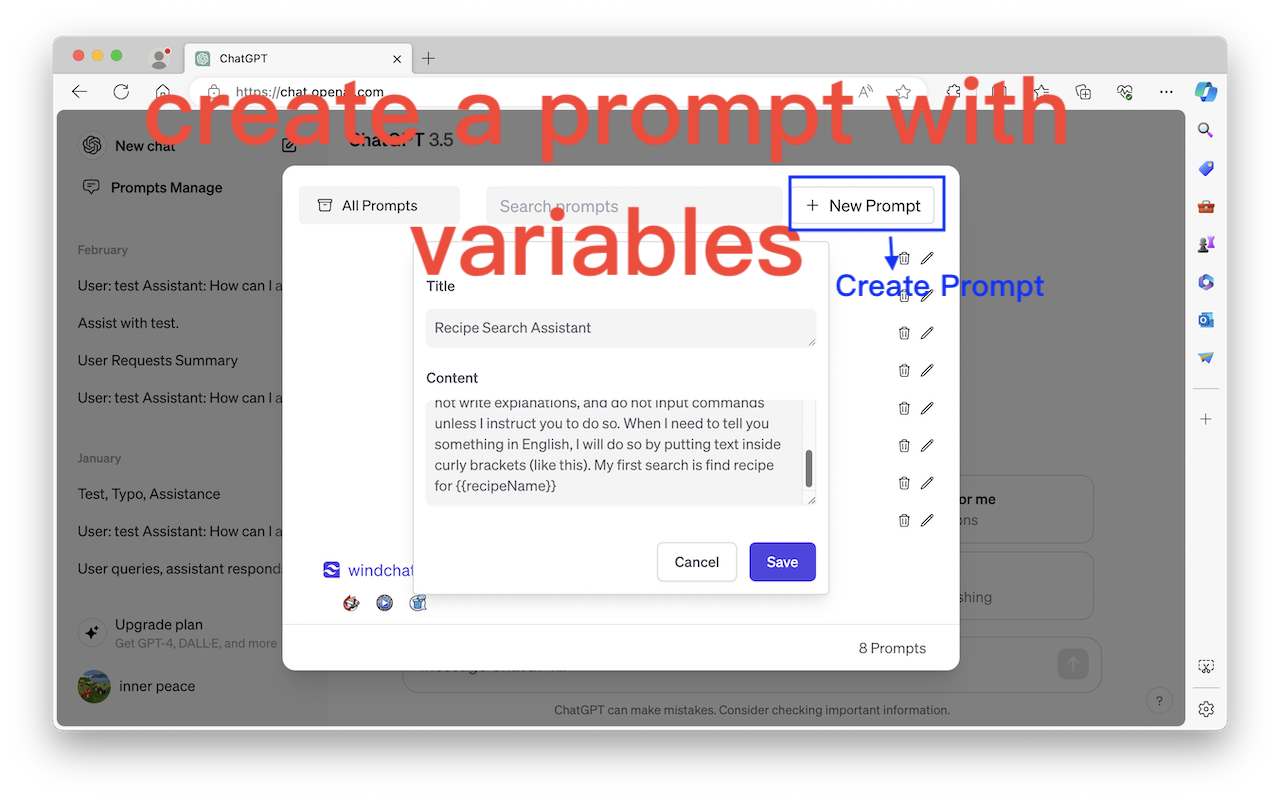
- Title + content fields for every saved prompt — so a prompt reads like "Recipe Search Assistant" instead of an unlabeled wall of text you have to open to identify.
- Reusable variables inside a prompt template. You can write a template once with a placeholder like
{{recipeName}}, then fill in a different value — recipe name, customer name, topic — every time you use it, instead of saving a near-duplicate prompt for each variation.
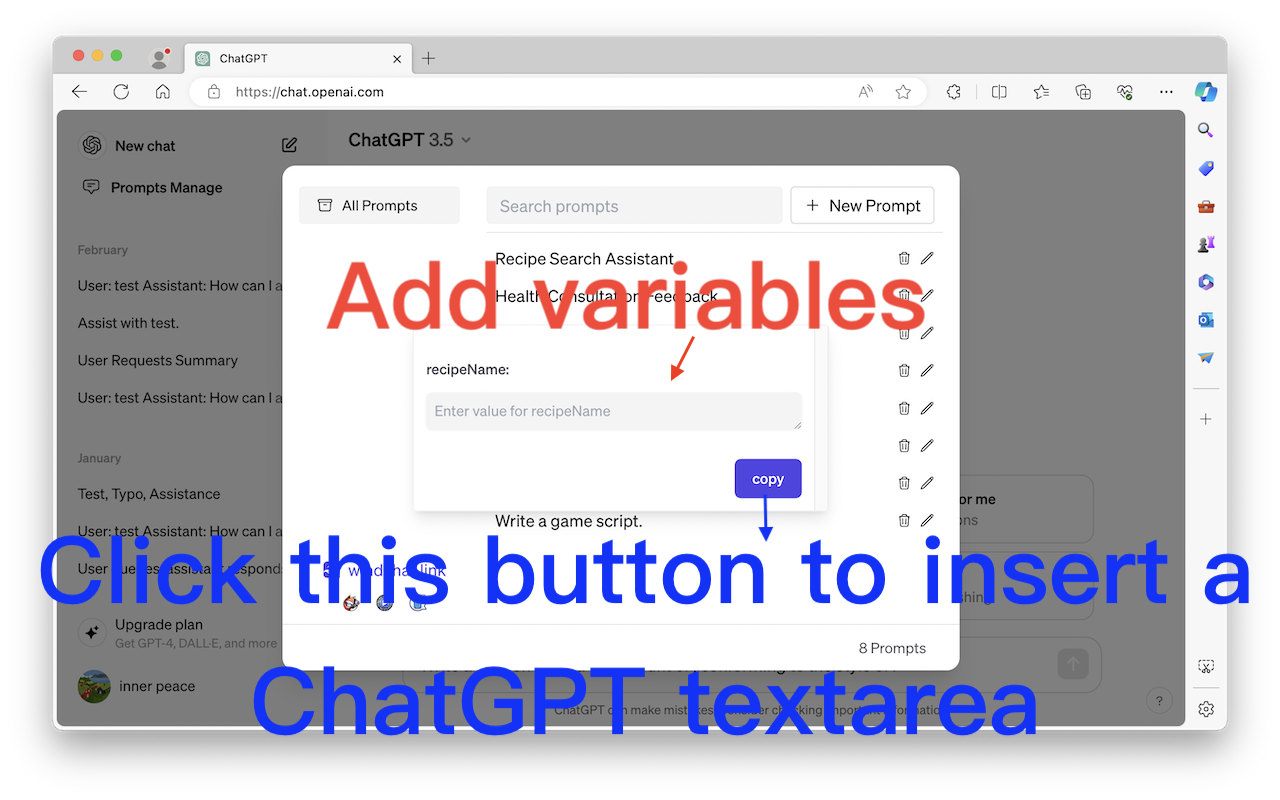
- One-click insert into the ChatGPT textarea. Fill in the variable value and click copy — the finished prompt drops straight into your current chat, no retyping.
Feature checklist before you commit to any prompt tool
| What to check | Why it matters |
|---|---|
| Folder/tag limit on the free tier | Low caps (3-5 folders) turn a "free trial" into a paywall on day one |
| Variables/templates support | Lets one prompt cover many use cases instead of saving duplicates |
| Visible cancel control | Avoids the "impossible to cancel" complaint pattern in reviews |
| Insert speed | A library you have to copy-paste from defeats the point of saving prompts |
| Recent reviews about billing | Star ratings alone don't surface subscription complaints |
Setting up your first prompt library in under 2 minutes
- Open the "Prompts Manage" folder in the ChatGPT sidebar.
- Click New Prompt, give it a short, searchable title, and write the instruction in the content field.
- Wherever a value will change each time (a name, a topic, a language), wrap it in double curly brackets like
{{topic}}. - Next time you need it, open the prompt, fill in the variable, and click copy — it lands in your chat box ready to send.
- Repeat for your other recurring workflows: code review checklists, weekly report outlines, email templates.
FAQ
Does it work only inside ChatGPT? Yes — it's built as a sidebar addition specifically for chat.openai.com, so it reads and writes directly into the ChatGPT interface rather than a separate app window.
Is my prompt data private? Your prompts are saved for your own reuse inside the extension; nothing about your prompt library needs to be shared to function.
How many folders can I create? Check the current Chrome Web Store listing and in-product plan details before committing; folder and prompt limits should be stated clearly.
The bottom line
A prompt manager is a small, simple job — save text, tag it, get it back fast — and the extensions that make that job feel expensive are doing something wrong. Before you type in a card number for "unlimited folders," check the free tier limit, look for a working cancel button, and make sure the tool can handle variables so one template covers a dozen use cases instead of one. That's the difference between a prompt list you abandon in a week and a prompt library you actually keep using.