If you've ever tried to back up your ChatGPT history, you've probably run into the same wall: ChatGPT lets you export a conversation, but only one conversation, from inside that conversation, over and over again. For anyone with more than a handful of chats worth keeping, that's not a workflow — it's an afternoon lost to repetitive clicking.
Why "export one chat at a time" doesn't scale
Open a chat, find the export or share option, save the file, close it, open the next one. Do that thirty times and you've burned through most of an hour just to get files onto your computer — before you've even organized them. For anyone who uses ChatGPT daily for coding, writing, or research, the backlog of chats worth keeping grows a lot faster than one-at-a-time exporting can keep up with.
The #1 complaint about ChatGPT export tools
This exact gap shows up constantly in reviews of popular ChatGPT export extensions. One 1-star review of a widely-installed exporter put it plainly:
"Useless. Bulk chat export isn't possible, you should save them one-by-one." — 1-star review of a popular ChatGPT export extension
It's not an isolated complaint, either. A review of a different multi-feature AI toolbox described paying for a premium tier specifically expecting bulk export, only to find "no such thing" once they'd upgraded. Meanwhile, a five-star review of that same first exporter shows the flip side of the same demand — a user asking whether the developer could add the ability to "export all conversations at once" and saying they'd happily pay for it if so. Whether people are complaining about its absence or requesting it directly, the message from both good and bad reviews is the same: exporting conversations individually isn't good enough once you have more than a few worth keeping.
What "bulk export" should actually mean
A real bulk export isn't just "export slightly faster." It should let you:
- See your full chat list — including archived chats — in one place, not just what's currently pinned in the sidebar.
- Select any number of conversations at once, from a handful to your entire history.
- Choose the file format for the export rather than being locked into whatever the export happens to produce.
- Download everything selected in a single action, instead of repeating the same steps per chat.
Step-by-step: bulk-exporting your ChatGPT history with Download ChatGPT
Download ChatGPT adds a "Download ChatGPT" button directly into the ChatGPT sidebar. Clicking it opens a dialog that lists every conversation — split into Default Chats and Archived Chats tabs — each with its own checkbox.
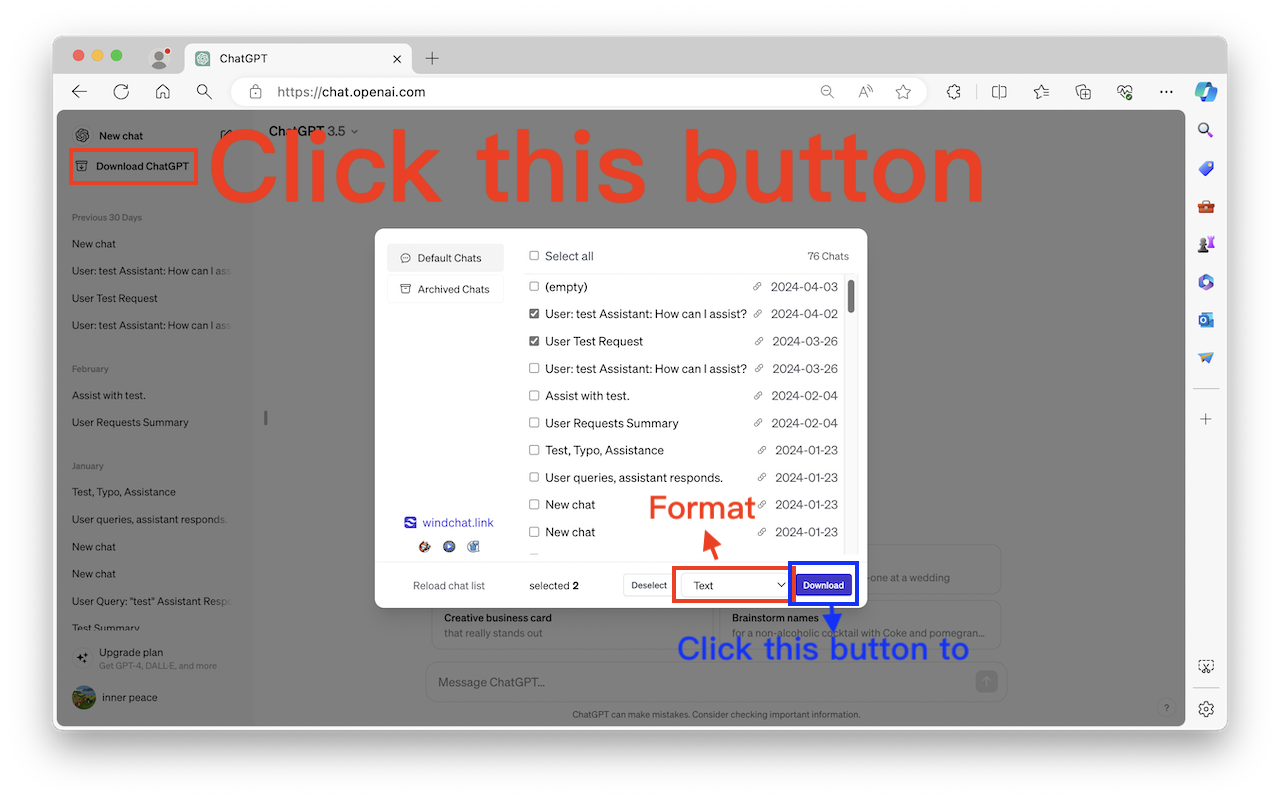
From there, the workflow is:
- Click the Download ChatGPT button in your sidebar to open the export dialog.
- Switch between the Default Chats and Archived Chats tabs depending on what you want to back up.
- Click Select all, or check individual conversations if you only need a subset.
- Pick your export format from the dropdown.
- Click Download — every selected conversation is saved in one pass, no repeated clicking required.
If your list looks out of date, the Reload chat list option refreshes it before you select anything, so you're not missing chats you created since the dialog was last opened.
Avoiding data loss: back up before you need to
A conversation history is easy to take for granted until something happens to it — an account issue, a change you didn't expect, or simply months of useful context you'd hate to lose. Exporting isn't just for archiving finished projects; it's cheap insurance for anything you've spent real time building in a chat, from a long coding session to research you don't want to redo from scratch.
Common bulk-export mistakes to avoid
- Forgetting archived chats. If you've ever archived a conversation instead of deleting it, make sure you check that tab too — it's easy to back up only what's currently visible in the main list.
- Not reloading the list first. Export dialogs can go stale if you've created new chats since you last opened them.
- Skipping format decisions. Pick the format that matches how you'll actually use the export later — searching plain text is a very different experience from browsing a formatted file.
Manual export vs. ChatGPT's own data export vs. bulk-select
| Method | Chats per action | Time for ~100 conversations | Handles archived chats |
|---|---|---|---|
| Manual export, one chat at a time | 1 | 30+ minutes of repetitive clicking | Only if you open each one |
| ChatGPT's built-in "Export data" email | All, as one bundle | Minutes to arrive, but one large JSON/HTML dump | Mixed in with everything else |
| Select-all bulk export extension | Any number you choose | Under a minute | Yes — separate Default and Archived tabs |
The bottom line
Exporting ChatGPT conversations one at a time works fine if you only ever have one or two worth keeping. Everyone else — anyone with a real backlog of coding sessions, research threads, or drafts they don't want to lose — needs a way to select many chats at once, including the ones tucked away in Archived, and get them all downloaded in a single click instead of a dozen.