You're two minutes into a screen share when someone in the meeting says, "wait, is that the client's name in your sidebar?" It's a specific kind of dread — and it happens more often than you'd think to anyone who keeps ChatGPT, Claude, or another AI chat app open in a background tab during presentations, demos, or recordings.
The projector moment
Reviews of privacy-focused browser extensions for chat apps are full of exactly this scenario. One user described the moment their private chat history ended up projected clearly on a conference room screen during a work presentation, mortified in front of colleagues who could read every conversation title. Another reviewer of a similar tool called it "excellent for use in places where your screen is exposed" — the kind of praise that only makes sense once you've had the alternative happen to you. It's the same story people tell about video calls, screen recordings, and pair-programming sessions: the AI chat tab isn't the thing you're presenting, but it's the thing everyone notices.
Why "just close the tab" isn't enough
The obvious fix — close the chat tab before you share your screen — assumes you always remember, every single time, under time pressure, before you click "Share." In practice, most people keep their AI chat open precisely because they're using it during the call: pulling up notes, checking a previous answer, or drafting something live. Closing it defeats the purpose. What you actually want is your chat history hidden by default, so there's nothing to remember in the moment it matters most.
What existing privacy tools get wrong
Chat and messaging privacy extensions aren't new, but the reviews for existing ones reveal two recurring gaps. First, coverage is often incomplete:
"Names of contacts and groups are not blurred." — 1-star review of a popular privacy blur extension
Hiding some content while leaving names and previews visible defeats the point — a partially-hidden sidebar can still leak exactly the detail you were trying to protect. Second, reliability breaks down over time, with a steady stream of reviews reporting the extension simply stopped working after a site update, sometimes for weeks before a fix shipped. Between incomplete hiding and tools that quietly stop functioning, it's easy to end up with a false sense of protection.
The better approach: hidden by default, revealed only when you choose
Rather than trying to detect the exact moment you start sharing your screen — which depends on catching a fast-changing browser state correctly every time — Chat Privacy takes a simpler, more reliable approach: it hides your chat history sidebar automatically as soon as a supported AI chat site loads, every time, by default. There's no "on" switch to remember before a call because it's already on.
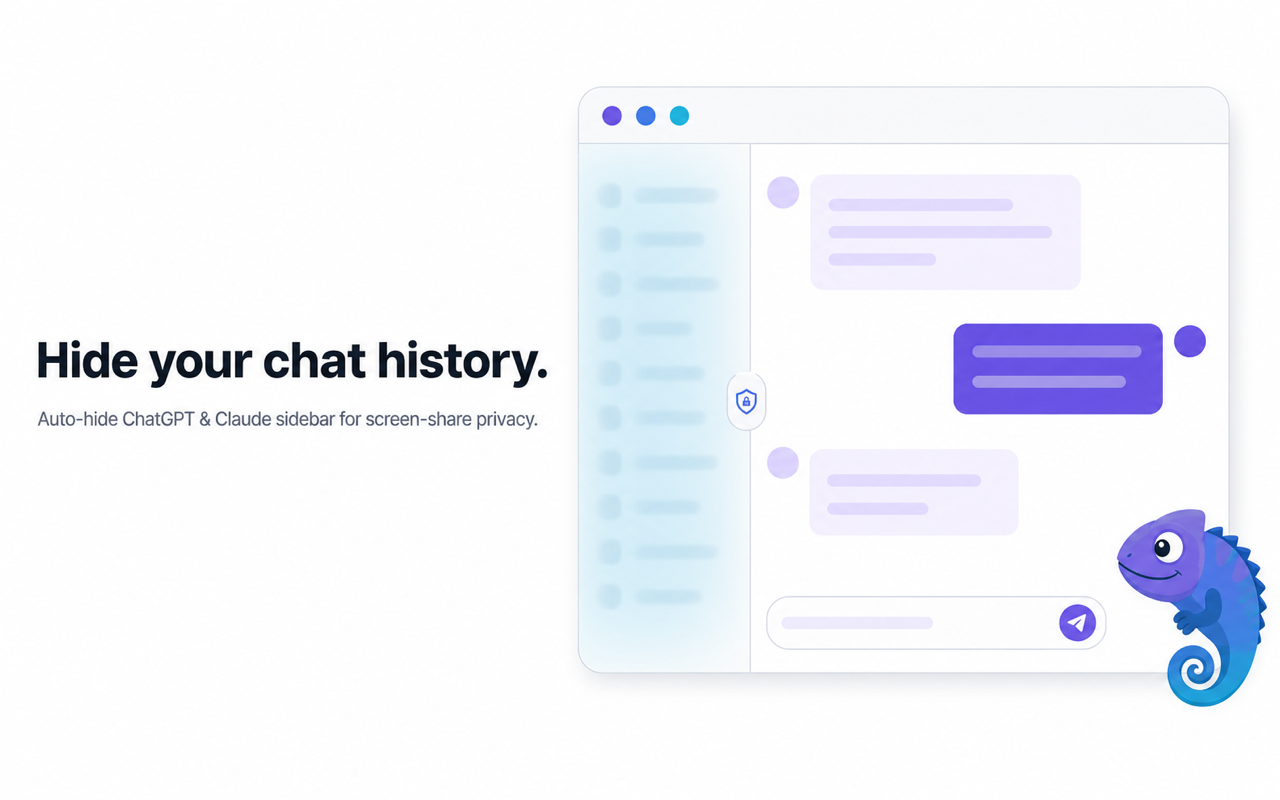
When you actually need to browse your own history, a small reveal control sits right where the sidebar would normally be — one click shows your chats, one more click hides them again.
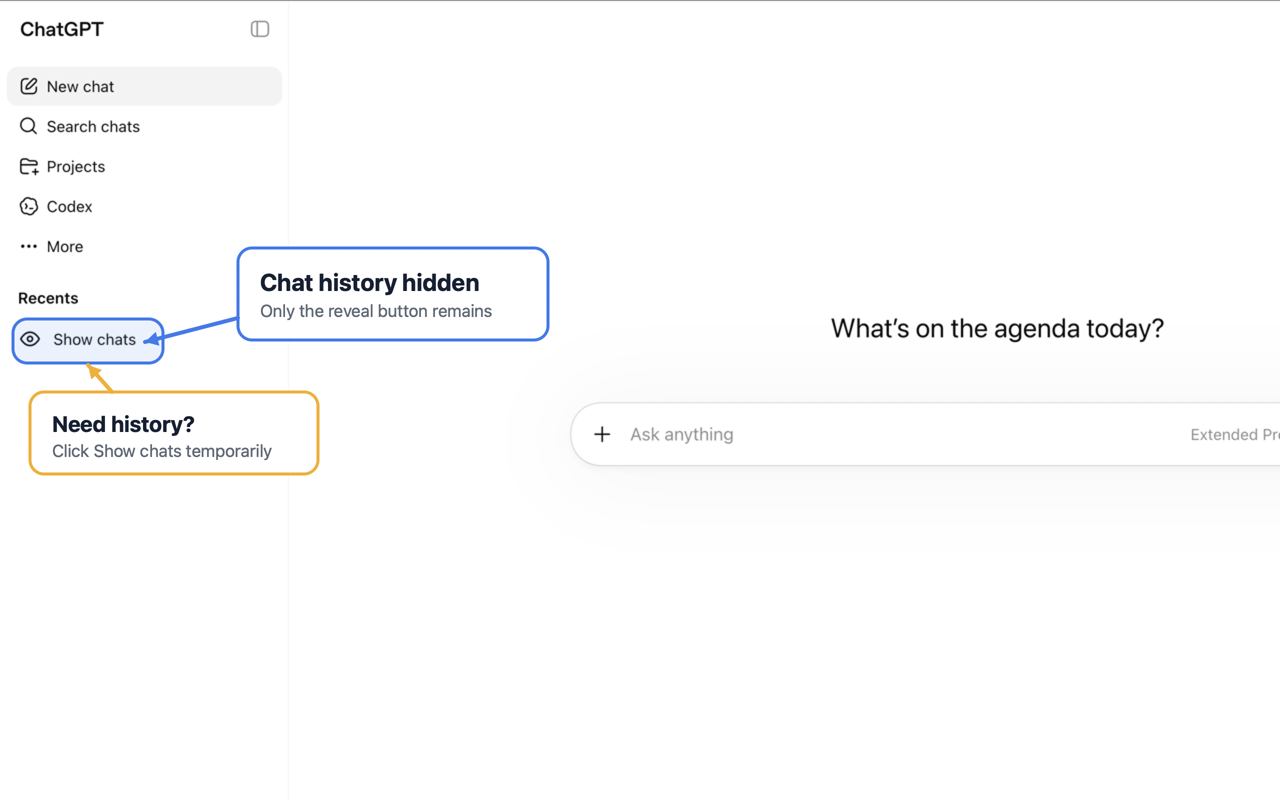
What gets hidden (and what doesn't)
Conversation titles in the sidebar are what get hidden — the part that typically leaks a client name, a project codename, or the subject of something you haven't announced yet. The reveal control itself stays visible so you're never locked out of your own history; you're just one click away from it instead of it being on display the whole time.
Setting it up in under a minute
- Add Chat Privacy to Chrome.
- Leave the default setting as-is — hiding is on automatically.
- Open any of the eight supported sites: ChatGPT, Claude, Gemini, Perplexity, Microsoft Copilot, Poe, DeepSeek, or Grok.
- When you need to find an old conversation, click the reveal control in the sidebar, then hide it again when you're done.
There's no manual toggle to remember before a meeting — you only ever interact with it when you want to see your history, not when you need to remember to hide it.
Common screen-share privacy mistakes to avoid
- Relying on memory instead of a default. If hiding depends on you remembering to do something before every call, it will eventually fail on a busy day.
- Assuming "blurred" means "hidden." Partial blurring that still leaves names or previews readable isn't real privacy — check what's actually covered.
- Trusting broad permissions you don't need. A tool that only needs to hide sidebar text shouldn't require access to every website you visit.
Typical privacy extensions vs. a default-hidden approach
| Typical chat/privacy blur extensions | Chat Privacy | |
|---|---|---|
| Coverage | Contact names or previews sometimes left visible | Sidebar chat titles hidden by default on every supported site |
| Getting it working before a call | Often needs the master switch re-enabled | Nothing to remember — hidden automatically on page load |
| Data handling | Varies by extension | 0 network requests, 100% local, no analytics or tracking |
| Reliability across sites | Reports of breaking after site updates | Built for 8 named sites: ChatGPT, Claude, Gemini, Perplexity, Copilot, Poe, DeepSeek, Grok |
The bottom line
The "projector moment" isn't a freak accident — it's what happens when privacy depends on remembering to act at exactly the right time. Hiding your AI chat sidebar by default, with a one-click reveal for when you actually need it, removes the moment of remembering entirely. You stop worrying about what's on your screen the second you start sharing it.