Markdown has quietly become the default format for anyone building a personal knowledge base. It's plain text, it opens in Obsidian and Notion without a conversion step, and it's the format most AI tools handle best when you paste research back into a prompt. The problem is turning an actual webpage — with its ads, sidebars, sign-up walls, and inline images — into Markdown that's actually clean, instead of a wall of broken formatting and dead links.
This guide covers what to look for in a web clipper, the one image-handling detail almost nobody checks before it's too late, and how to clip a full research session instead of one page at a time.
Why Markdown, specifically
Researchers, writers, and anyone building notes for an LLM tend to converge on Markdown for the same reasons: it's readable as raw text, diffable in version control, portable between note apps, and it doesn't carry a proprietary format lock-in the way a Word doc or a native Notion export does. Clipping a webpage straight to Markdown means the note you save today still opens cleanly in whatever tool you're using five years from now.
The hidden problem: images are usually just remote links
Here's the part that rarely comes up until it's already a problem. When a clipper converts a webpage's <img> tags into Markdown, the simplest (and most common) approach is to keep the original image URL: . Your note looks complete — the image renders fine today. But that Markdown file doesn't contain the picture, only a pointer to where it used to live.
A frustrated Obsidian Web Clipper user summed up exactly why this matters:
"既然Obsidian初衷是为了把笔记本地化管理,为什么Obsidian Web Clipper没有把笔记的图片下载到本地的方式保存?现在图片全都是网址引用,哪一天网页失效了,笔记里图片都没了,只剩下文字了。" — roughly: "The whole point of a local-first note app is to own your notes locally — why does the clipper only reference image URLs? The day the source page goes down, every image in the note is gone, and only the text remains."
If you're clipping something you expect to reference in a year — a recipe, a tutorial, research for a long project — that's the exact moment a remote-only image quietly stops working, and there's usually no warning before it happens.
What actually breaks when the source page goes down
This isn't a rare edge case. Sites get redesigned, CDNs rotate image paths, articles get taken down, and image hosts change domains constantly. When any of that happens to a page you clipped, the text in your Markdown note is unaffected — but every image reference silently turns into a broken link. You won't notice until you open that old note and see empty boxes where the screenshots used to be.
Before trusting any clipper with something long-term, it's worth checking: does it keep images as remote URLs, or actually pull a copy of the image data into the export? Not every tool advertises this clearly — it's usually something you only discover by re-opening an old clip after the source page has changed.
Clipping a full research session, not one page at a time
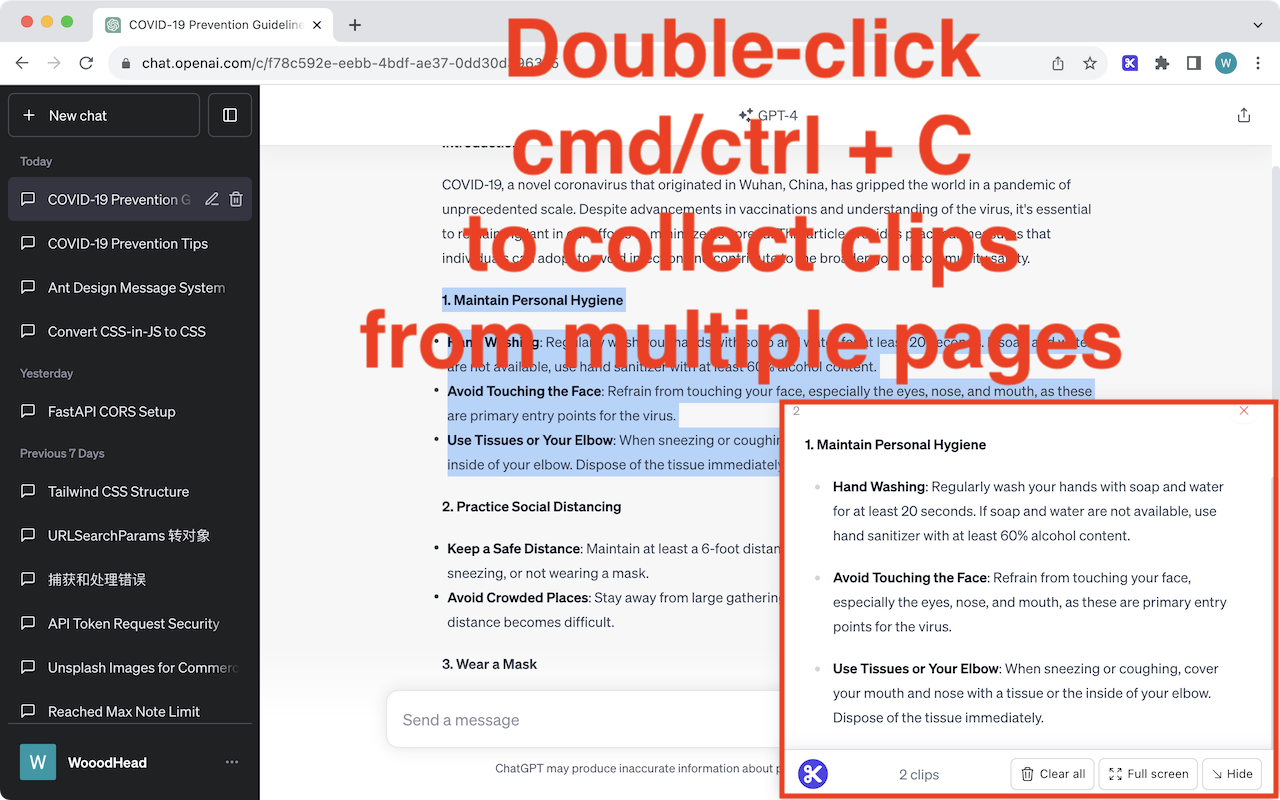
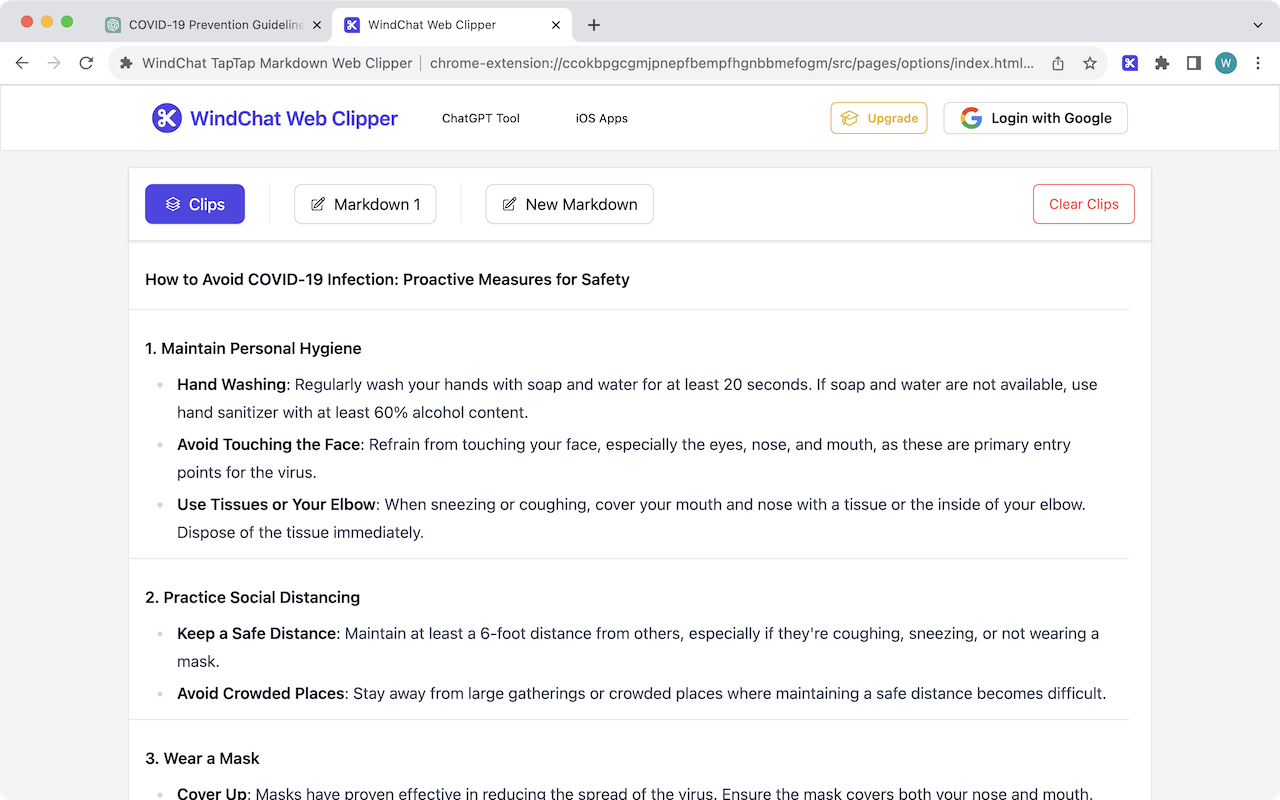
A separate, more everyday friction with most clippers: they're built to save one page, once, as one file. But real research rarely happens on a single page — you're comparing three product pages, or pulling quotes out of five different articles for one summary. Markdown Web Clipper is built around collecting snippets as you go: select text or an image on any page, copy it into the clip bucket, move to the next tab, and repeat — building up one running collection across however many pages you're working through, instead of exporting and re-opening a file after every single clip.
Editing before you export
Once you've gathered your clips, you're not stuck with whatever the raw conversion produced. The clip editor lets you clean up headings, fix a broken list, or drop a paragraph you don't need before you commit to a final file — closer to drafting a note than blindly trusting an automated HTML-to-Markdown conversion.
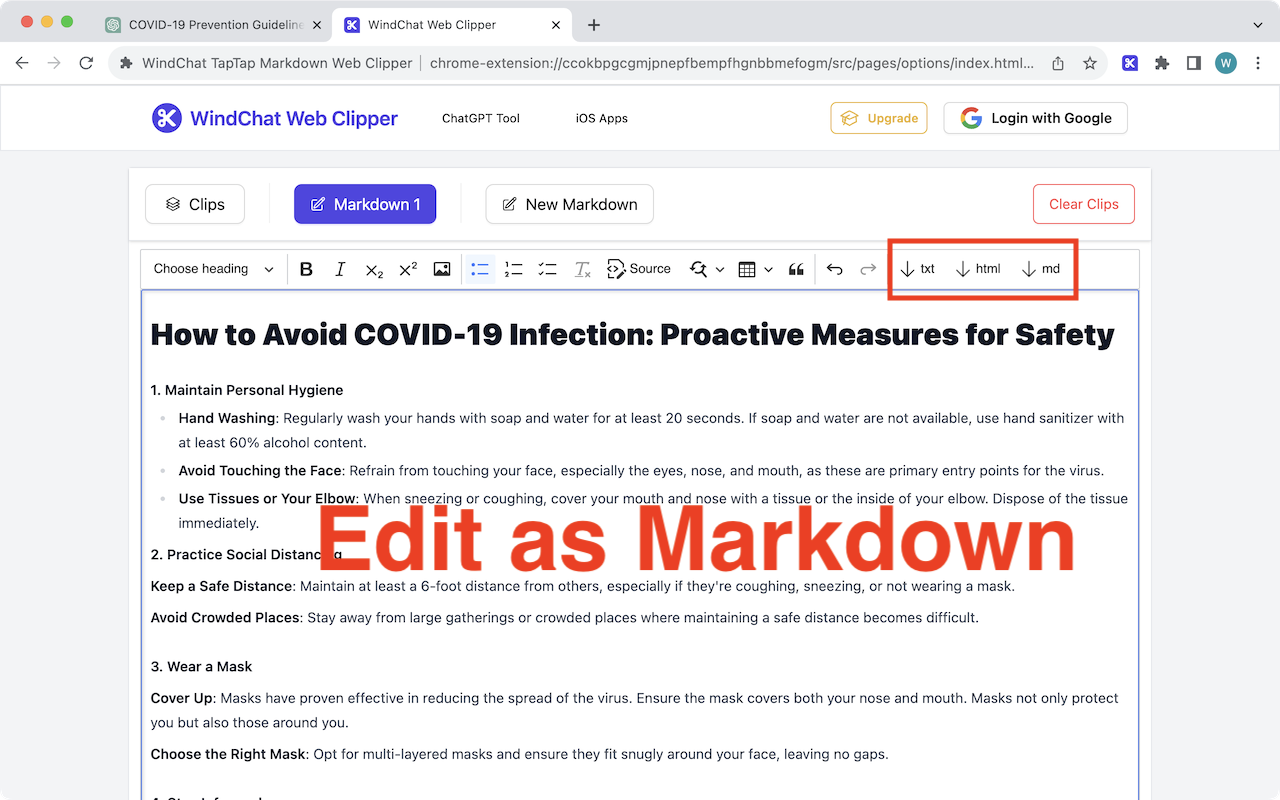
When you're done, export the whole collection as Markdown, HTML, or plain text — whichever your note app or workflow actually wants — instead of being locked into one output format.
Handling messy, complex pages
Long articles, Wikipedia-style pages dense with inline citations, and recipe sites with ad-heavy layouts are where automated conversion tends to fall apart — one reviewer of a well-known clipper complained it wasn't "yet good for recipes" and that they'd "spent hours attempting to adjust the recipe template." The practical fix is the same one above: don't treat the raw conversion as final. Select and clip the specific paragraphs, ingredients, or sections you actually want, rather than converting an entire cluttered page and hoping the noise strips itself out.
A quick checklist before you trust a web clipper long-term
| What to check | Why it matters |
|---|---|
| Does it keep images as remote links or copy the image data? | Determines whether old clips survive a site redesign |
| Can you clip across multiple tabs into one file? | Matches how real research sessions actually happen |
| What export formats are supported? | Markdown for notes, HTML/text for everything else |
| Can you edit before exporting? | Raw HTML-to-Markdown conversion rarely needs zero cleanup |
| Did a major update ever wipe existing clips? | Some popular clippers have a history of breaking on updates |
The bottom line
Markdown is the right format for keeping research portable and future-proof — but "clipped to Markdown" doesn't automatically mean "safe forever." Text survives; remote-linked images are only as durable as the page you copied them from. Check how a clipper handles images before you rely on it for anything you'll want to read again in a year, and look for one that matches how you actually research — across several tabs, combined into one note, exported in whatever format you need next.