You right-click "save all images," open the folder ten minutes later, and every photo looks slightly blurry — smaller than what you saw on the page. This isn't a bug you caused. It's how most bulk image downloader extensions work by default: they grab whatever <img> URL is currently sitting in the page, and on a huge number of sites — Pinterest boards, product galleries, image search results — that URL points to a compressed preview, not the original file.
This guide explains why that happens, how to tell before you download, and how to actually get full-size images out of a page in bulk.
Why "image downloader" extensions give you thumbnails by default
Modern websites rarely load one full-resolution image per photo. To keep pages fast, they serve a small preview (often 200–400px wide) in the visible grid, then swap in the full-size file only when you click to open the photo, or via a srcset the browser picks based on your screen. A bulk downloader that just reads img.src on the page grabs exactly what's currently loaded — which, on a scrolling gallery or a Pinterest board, is almost always the preview.
This is the single most common complaint about bulk image tools. As one 2-million-user image downloader's reviewer put it:
"It's one of the best image downloader extensions... but it only downloads the thumbnail displayed on a page, rather than the full resolution picture."
Another reviewer on a different downloader was blunter: "it only downnloads the thumbnails. i want the big photo." This isn't one bad extension — it's the default behavior of reading whatever is currently in the DOM.
The telltale signs you're about to download thumbnails
Before you batch-download anything, check two things:
- The dimensions shown next to each image. A good bulk downloader lists the actual pixel size of every image it found —
236×309,640×480, and so on. If most of your grid shows three-digit widths, you're looking at previews, not originals. - The URL pattern. Preview URLs often contain a size marker in the path, like
/236x/or/thumb/. If every image on a Pinterest board has236xbaked into its URL, that's the CDN telling you exactly what you're getting.
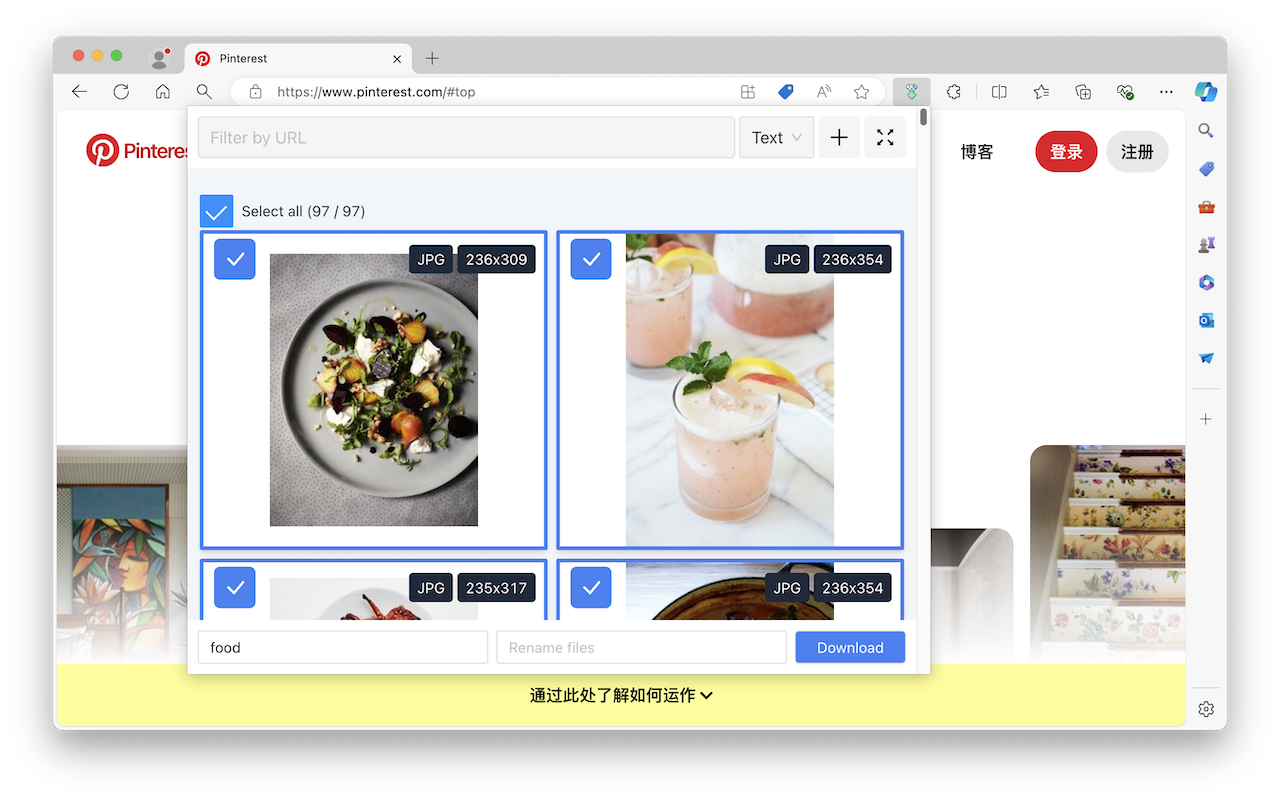
Filtering by real resolution before you download
The fix isn't a magic "upscale" button — no tool can invent pixels that were never sent to your browser. The fix is filtering: set a minimum width and height so anything under your threshold gets excluded automatically, instead of quietly landing in your downloads folder next to the images you actually wanted.
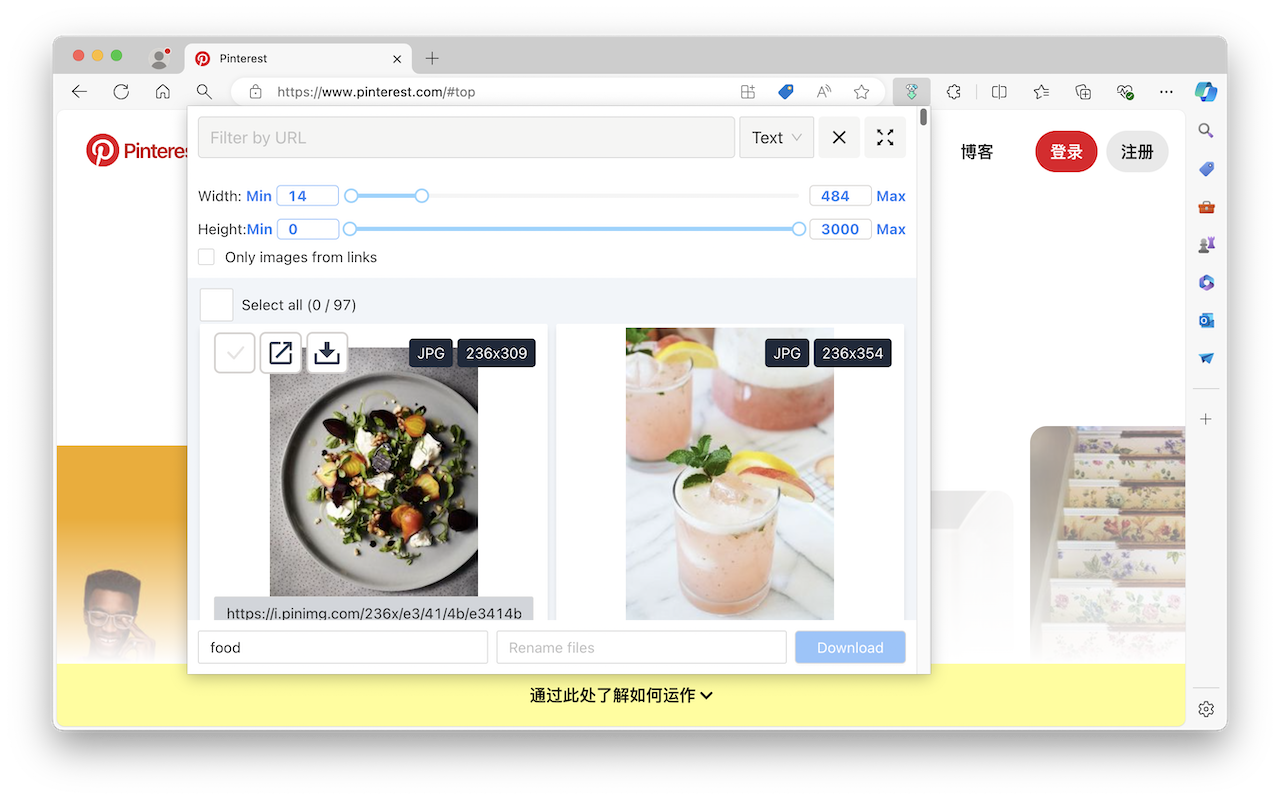
Image Downloader builds this filter directly into the popup: a width/height range with a live count of how many images match, so you can drag the minimum up until only the real photos remain, then select-all and download in one pass. It also downloads the actual file behind the image URL rather than re-encoding or re-screenshotting it — so once you've filtered out the previews, what you get is the original file, not a fresh compressed copy.
Handling lazy-loaded and paginated galleries
Filtering only works on images the page has actually loaded into the DOM. Two situations trip people up:
- Infinite-scroll galleries. If you open a board with 300 pins and only 40 have loaded, scroll through the whole gallery first (or use "select all" after a full scroll) so the extension can see every image, not just the first screen.
- Click-to-expand full images. Some sites only put the full-resolution URL in the page after you open the photo in a lightbox/detail view. If a downloader's dimension filter shows nothing above your target size, open one image manually first — that often swaps a small preview URL for the real one, which any extension running afterward can then pick up.
Neither of these is a flaw in a specific tool; it's how the source website chose to load its images. The filter is what lets you notice the gap instead of downloading it blind.
Batch downloads that quietly lose images
A second common complaint is incomplete batches: ask for 150 images and get back 40. This tends to happen on pages with virtualized scrolling (only visible rows exist in the DOM) or heavy rate-limiting from the source CDN. The practical workaround is the same as above — fully scroll or paginate through the content before triggering "select all," and download in smaller batches on sites that seem to cut off mid-way.
What to check before you install any image downloader
Beyond resolution, recent reviews of popular image downloaders flag a second, more serious issue: extensions quietly injecting ads or rewriting outbound links for affiliate tracking without disclosure. Before installing anything with broad page access, check what permissions it actually requests — a tool that only needs to read images on the active tab and trigger downloads has no legitimate reason to ask for permission to modify requests on every site you visit.
| What to check | Why it matters |
|---|---|
| Per-image pixel dimensions shown | Confirms you're not about to save previews |
| Minimum width/height filter | Excludes thumbnails automatically at scale |
| Requested permissions | Flags tools with no reason to rewrite links or inject ads |
| Works after a full scroll/pagination | Catches lazy-loaded galleries before "select all" |
| Chromium-variant compatibility | Vivaldi/Brave/Arc users report frequent breakage on some downloaders |
The bottom line
"Bulk image downloader" and "full resolution" aren't automatically the same thing — most tools save exactly what's in the page's <img> tag at the moment you click download, and on a huge share of the web that's a compressed preview. The fix is checking real pixel dimensions before you download, filtering out anything under your minimum, and making sure the gallery has fully loaded first. Do that once, and "select all, download" stops meaning "sort through blurry thumbnails afterward."