If you check the same 8 dashboards every morning, pull up the same 15 competitor pages before a report, or need to open every link a teammate pasted into Slack, clicking each one individually is a small tax you pay every single day. A bulk URL opener should fix this in one paste-and-click. The frustrating part, according to a lot of reviews of popular "open multiple URLs" extensions, is that the list you just built vanishes the moment you close the window — so you're retyping or re-pasting the same links tomorrow anyway.
Here's how to open a batch of links properly, and how to make sure the work of building that list isn't wasted after today.
Where a list of links to open actually comes from
This isn't a niche workflow. It shows up constantly:
- A researcher pulling up 20 sources before writing
- QA testing the same set of pages after every deploy
- A morning routine of news sites, inbox, and a couple of dashboards
- A sales rep opening a batch of lead pages from a spreadsheet export
In every case, the links already exist somewhere — a doc, an email, a spreadsheet column — before you ever open a browser tab.
The manual copy-paste-new-tab grind
Opening one link by hand is nothing. Opening the fifth one from the same list, in the same order, every morning, is where it stops being worth doing manually. Past roughly five or six links, the actual bottleneck isn't finding the links — it's the repetitive click-paste-enter cycle for each one.
Pasting a block of text and letting it find the links for you
You rarely have a perfectly clean, one-URL-per-line list sitting around. More often it's a paragraph of notes, an email thread, or a spreadsheet cell with links mixed in with regular text. A common gap in bulk URL openers is exactly this: no way to just paste messy text and have the tool pull out only the valid URLs. As one reviewer of a competing extension put it plainly: "It lacks a core feature which is 'extract links from pasted text'."
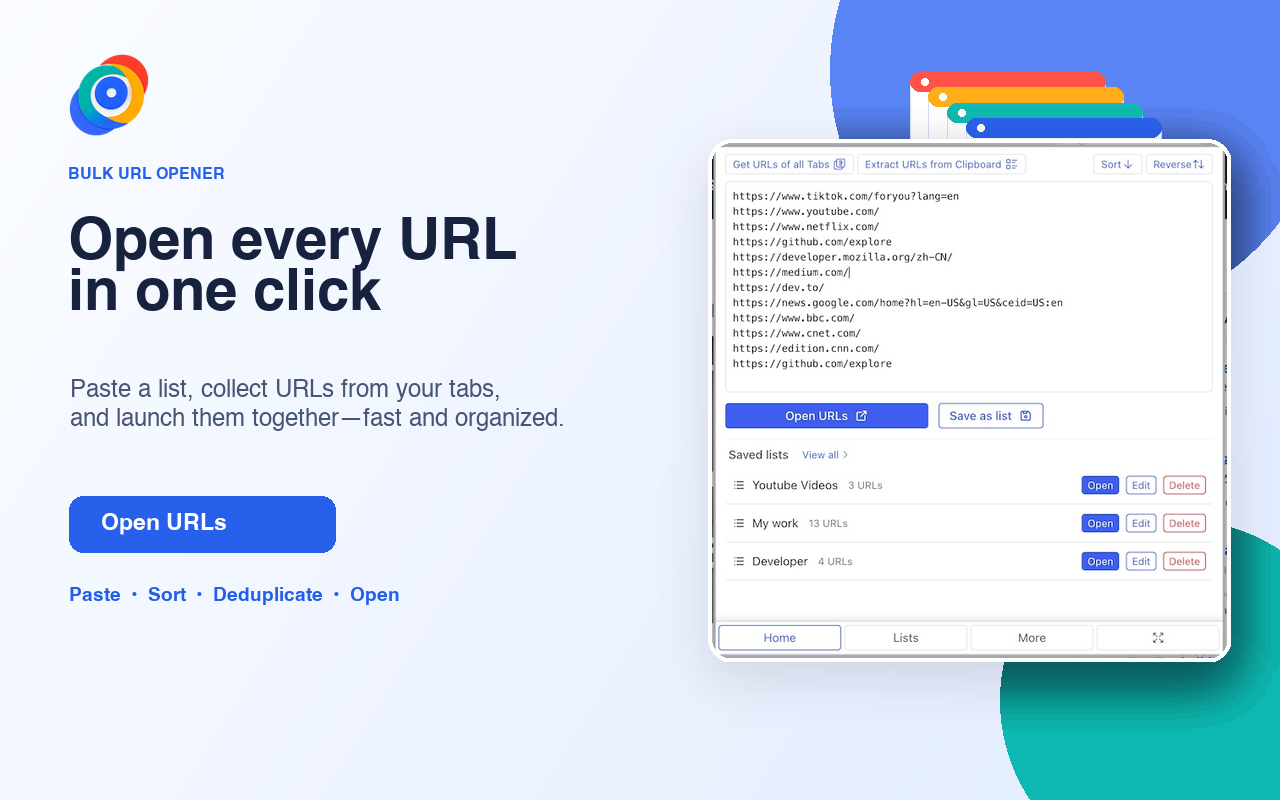
Open Multiple URLs handles this with a dedicated "extract URLs from clipboard" action — paste whatever you've got, and it pulls out the actual links instead of choking on the surrounding text. It also has a one-click "get URLs of all tabs" option, so building a list from your current open tabs is just as fast as building one from pasted text.
Why "bulk URL opener" tools that forget your list are missing the point
This is the single most common complaint across popular bulk URL openers: the list you built disappears as soon as you close the browser. Reviews of well-known options describe it almost identically —
"It forgets the links as soon as you close your window. What's the point?"
— and a second one, describing the same tool a version later: "it used to remember the list but it doesn't any more. You need to ad a save button to it." If you open the same set of links daily or weekly, a tool that can't remember that list isn't actually saving you time; it just moves the retyping from "typing URLs" to "re-pasting URLs."
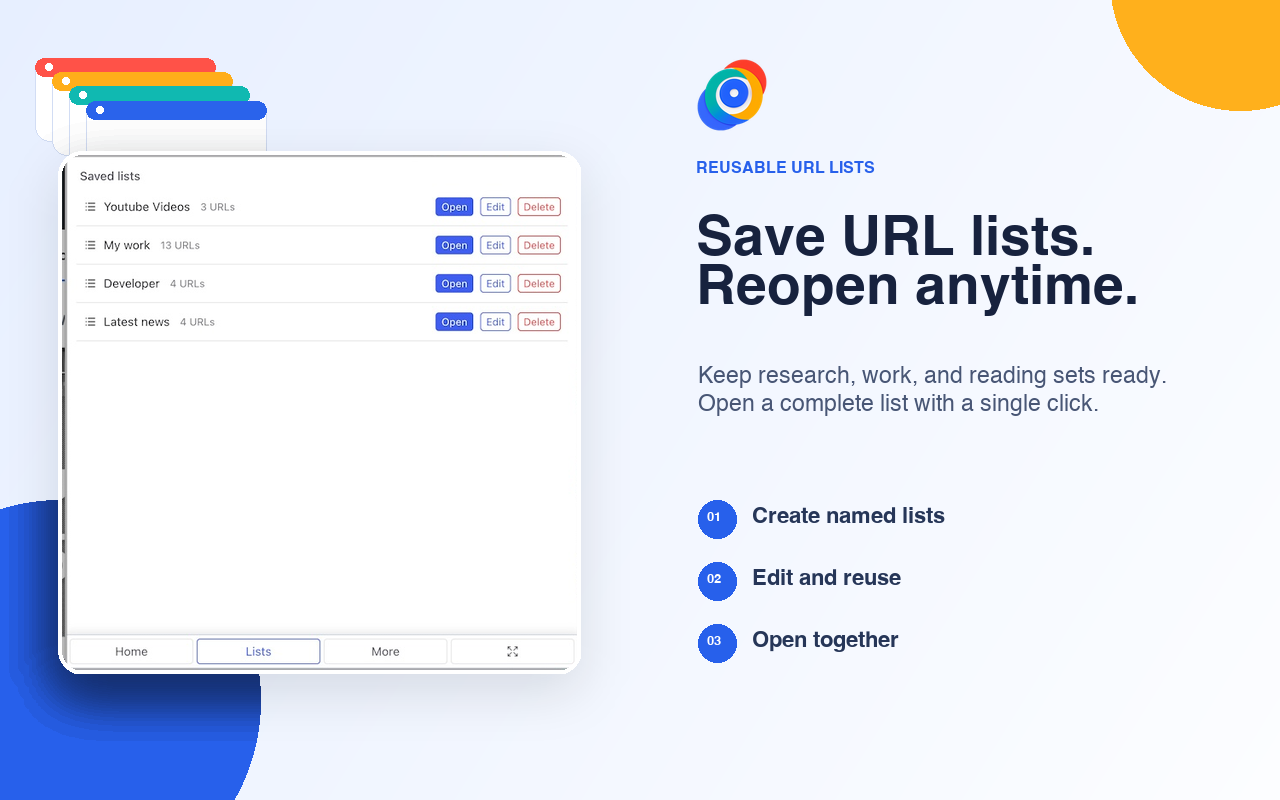
Saved lists are named, persist across browser restarts, and can be edited or reopened with a single click — so your "morning routine" list, your "QA smoke test" list, and your "current sprint dashboards" list all just sit there ready, instead of living in a sticky note.
Formatting gotchas worth knowing
A few small formatting rules trip people up with almost every bulk URL tool:
- Some tools require
http://orhttps://explicitly and won't infer it from a bare domain. - Blank lines in a pasted list are sometimes treated as an entry rather than ignored, which can throw off a count or open an unexpected blank tab.
- One-URL-per-line is the safest format; mixed text works better through an "extract" action than a raw paste into the URL box.
A note on opening a lot of tabs quickly
If you're opening a genuinely large batch — 50, 100+ links — some destination sites treat a burst of near-simultaneous requests from the same browser as automated traffic and may respond with a CAPTCHA or a temporary block. This isn't specific to any one extension; it's how rate-limiting works on the receiving end. For very large batches, opening them in smaller chunks a few seconds apart is a reasonable habit, independent of which tool you're using to launch them.
| Feature | Why it matters |
|---|---|
| Extract URLs from pasted text | Skips manual cleanup of messy copy-pasted lists |
| Get URLs of all open tabs | Turns your current tabs into a reusable list in one click |
| Saved, named lists | The whole reason to automate this — no daily re-pasting |
| Sort / deduplicate before opening | Avoids opening the same link twice from a merged list |
Building a repeatable daily-open routine
Once your links are saved as a named list, the workflow collapses to: open the extension, click the list, done. It's worth spending the two minutes to actually name and save the lists you use often — "Morning," "Competitor pages," "Sprint dashboards" — rather than re-pasting the same block of text out of a notes app every time. That upfront two minutes is the entire point of a bulk URL opener; skip it, and you've just automated the click without automating the retyping.
The bottom line
Opening a lot of links at once is the easy half of this problem — most bulk URL openers handle that part fine. The half that actually saves you time day after day is whether the tool remembers your list without you re-pasting it, and whether it can pull clean URLs out of messy text instead of requiring a perfectly formatted paste. Check both before you commit to one.