You ask ChatGPT for a login form, a pricing card, or a dashboard sidebar. It hands back forty lines of JSX wrapped in Tailwind classes — flex, w-1/2, bg-gradient-to-r, a dozen more. You read it. You think it looks right. But reading className="rounded-lg shadow-md px-6 py-4" and knowing exactly how that card will actually look, spaced, and aligned on screen are two very different skills. Most people can't do the second one reliably, and that's the whole problem with copy-pasting AI-generated UI code: you don't find out it's wrong until you've already pasted it into a real project.
This is the gap between "ChatGPT wrote code" and "I can see the code," and it's why a growing number of developers now preview AI-generated Tailwind and React output in the browser before it ever touches a real codebase.
Why reading the code isn't enough
Tailwind's utility classes are dense by design — that's what makes them fast to write, and also what makes them hard to mentally render. A grid grid-cols-3 gap-4 layout reads fine, but whether the columns actually line up with your content, whether the gap looks cramped on mobile, whether that bg-cover background image crops the way you expect — none of that is obvious from text. React components add another layer: nested nulls, conditional rendering, and prop defaults that only reveal bugs once something actually renders.
The usual workarounds, and why they're friction
Most people default to one of three options, and each one adds a tax to what should be a five-second check:
- Spin up a local project. Correct long-term, painfully slow for a one-off check — you're installing Tailwind config, PostCSS, maybe a bundler, just to see if a login form looks right.
- Paste into CodeSandbox or a similar online IDE. Works, but it's a context switch: new tab, new project scaffold, waiting for dependencies to install, and often a mismatch between the Tailwind version CodeSandbox defaults to and whatever ChatGPT assumed.
- Use the Tailwind Play CDN. Fast to load, but it doesn't handle React/JSX out of the box, and larger snippets with custom
tailwind.config.jsvalues (custom colors, fonts) just silently fall back to defaults — so what you see isn't what you'll actually get.
Every one of these methods is "possible." None of them is fast enough to use every time ChatGPT hands you a component, which means most people skip the check entirely and find out something's broken only after it's already in their app.
What instant in-browser preview looks like
A dedicated preview extension collapses that whole workflow into three steps: copy the code block ChatGPT just generated, paste it into the extension's panel, and watch it render next to your conversation — no new tab, no npm install, no waiting on a sandbox to boot.
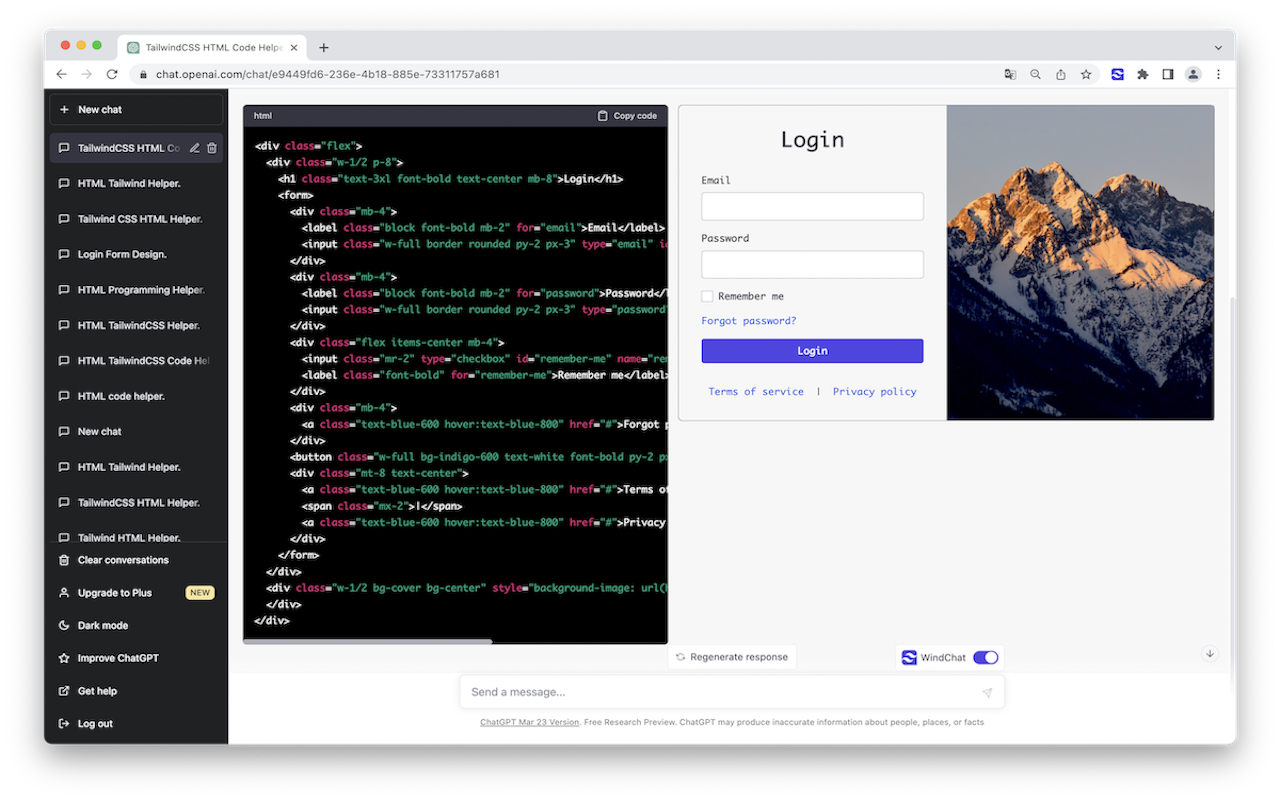
That's the core loop of Tailwind & React Previewer: it renders Tailwind and React/JSX snippets directly in your browser, right where you're already working, so "does this look right?" gets answered in the time it takes to read this sentence.
Real examples: forms, cards, and dashboards
The snippets people paste in most often aren't exotic — they're the everyday building blocks of a UI: login and signup forms, pricing or profile cards, dashboard widgets, and simple landing page sections.
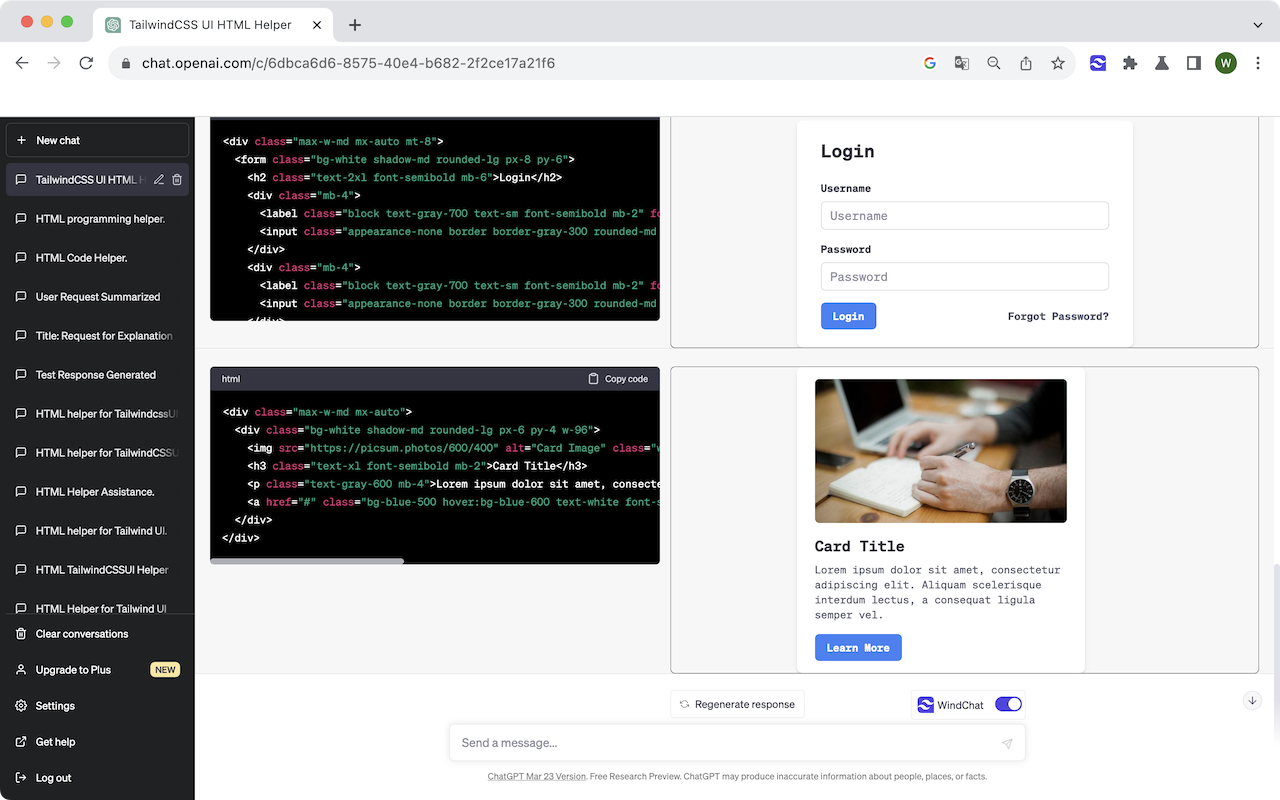
Seeing both a login form and a card component rendered side by side, right next to the code that produced them, makes spacing and alignment issues jump out immediately — a mb-2 that should have been mb-4, a card whose shadow is too heavy, an image that doesn't crop the way bg-cover implied. You catch it in the preview instead of in your actual app.
Where a preview stops and a real project starts
It's worth being direct about the boundary here: an in-browser preview is a prototyping companion, not a replacement for a real build pipeline. It's built to answer "does this look and behave the way I expect" for one component at a time — not to test how that component performs inside your actual state management, routing, or design system. Once a snippet passes the preview check, the next step is still to bring it into your project properly, wire up real props and data, and run it through your normal review process. Treat the preview as a fast first filter, not a final sign-off.
Common pitfalls to watch for
Even with instant preview, a few gaps trip people up regularly:
| Pitfall | What actually happens |
|---|---|
| Tailwind version mismatch | ChatGPT sometimes uses classes from a newer/older Tailwind version than your project runs |
| Missing custom config | Custom colors, fonts, or spacing scale defined in your tailwind.config.js won't appear in a generic preview |
| Icon library assumptions | Code referencing <HeroIcon /> or similar renders as a broken placeholder until you install the actual icon package |
| Placeholder images/data | picsum.photos URLs and Lorem ipsum text are stand-ins — expect to swap them for real assets |
None of these are dealbreakers; they're just things to check for once, so a preview accurately reflects what you'll actually ship.
Trust matters more than people expect from a dev tool
Developer tools have a rough track record here. Reviews of popular developer-facing extensions repeatedly flag the same two complaints: tools that silently break ("component tree won't load," "no tab added to inspector") and tools that quietly change what's on your screen without asking — one widely used formatter extension drew a wave of one- and three-star reviews after users noticed it was "hijacking the page with a donation modal" they never asked for. For something that touches your code, "does it upload anything, and does it change my page behind my back" are fair questions to ask before installing anything. A preview tool that renders locally in your browser tab, without sending your snippets anywhere or altering the page you're working on, avoids both problems by design.
FAQ
Does it support Tailwind v4? Utility classes render as written; custom config values from tailwind.config.js (custom colors, fonts, spacing scales) aren't automatically pulled in, since the preview works from the pasted snippet alone.
Is my code uploaded anywhere? No — preview rendering happens locally in your browser tab.
Can it replace React DevTools? No, and it isn't trying to. DevTools debug an app that's already running in your project; a previewer renders a snippet that hasn't been wired into anything yet. They solve two different problems in the same workflow.
The bottom line
The fastest way to know if ChatGPT's Tailwind or React code actually works is to look at it rendered, not to read it and hope. Local setups and online sandboxes both get you there eventually, but "eventually" is exactly what makes people skip the check. An instant in-browser preview turns that check into a five-second habit instead of a five-minute chore — which is the difference between catching a broken layout before it ships and catching it after.