Install GuideGot the “unverified developer” warning? Fix it in 30 seconds
macOS shows a security prompt the first time you launch a new app. WindSpace contains no malicious code — just two quick steps to allow it.
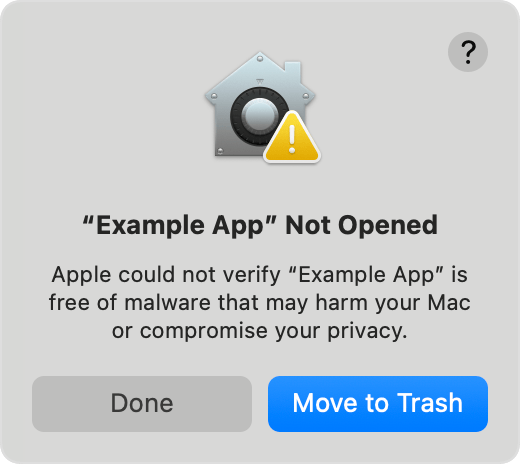
When you first double-click WindSpace, macOS shows “WindSpace cannot be opened because Apple cannot check it for malicious software.” Click “Done” on the left — do NOT click “Move to Trash”.
Never click “Move to Trash” — that deletes the app from your Mac.
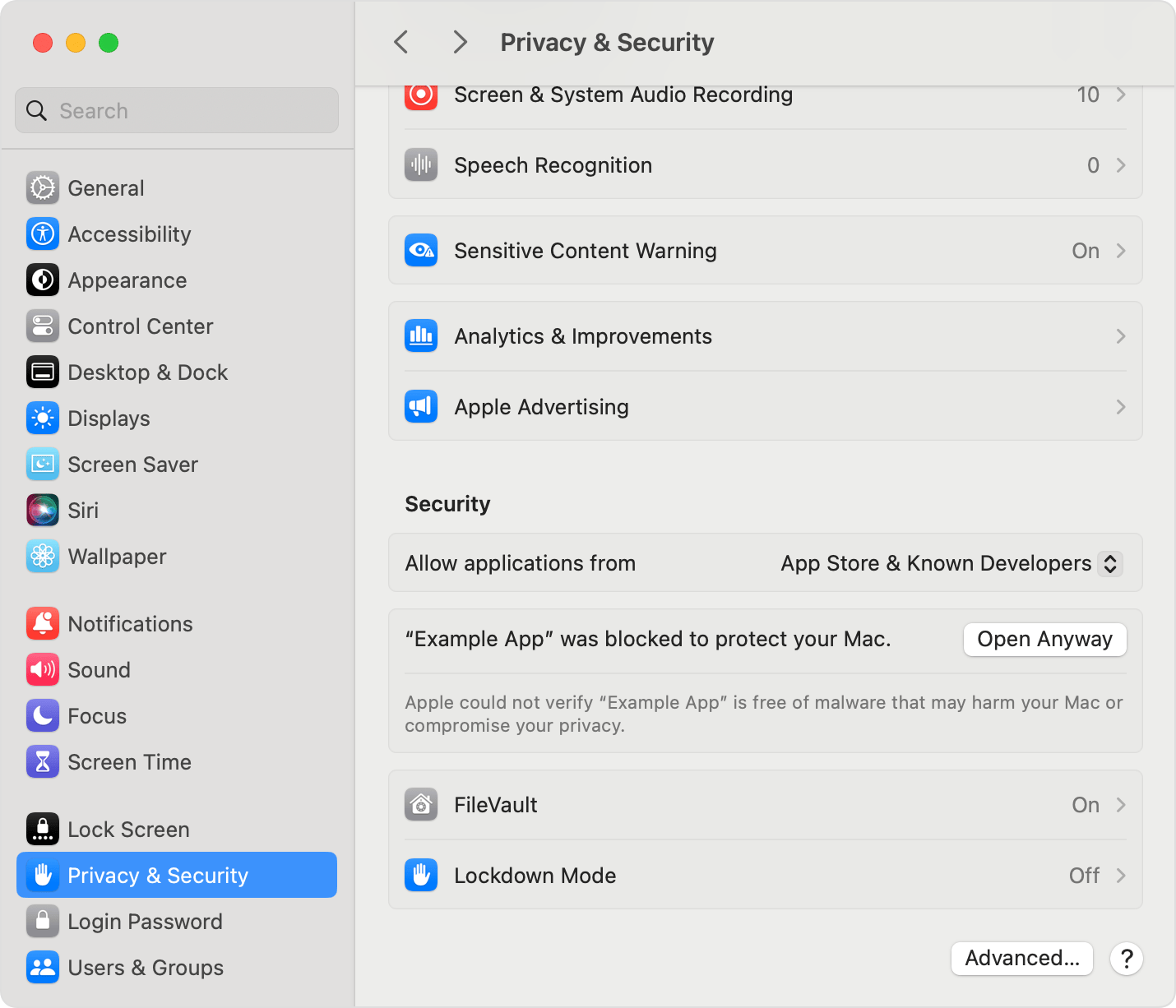
Open System Settings → Privacy & Security, scroll down to the Security section. You’ll see “‘WindSpace’ was blocked to protect your Mac.” Click “Open Anyway”, then authenticate with your password or Touch ID. The app will launch normally.
The “Open Anyway” button only appears after macOS has blocked the app once.