Windows has shipped Win+Arrow window snapping since Windows 7, and PowerToys' FancyZones took it further with custom grid layouts. Switch to a Mac and the first thing keyboard-driven users notice is that none of it is there by default. This guide covers what macOS actually gives you out of the box, why it doesn't fully replace your old Windows muscle memory, and how to set up an equivalent workflow.
The #1 thing Windows switchers miss on day one
On Windows, dragging a window to the left or right edge of the screen — or hitting Win+Left/Right — snaps it to exactly half the screen, with a preview showing where it'll land. It's such a basic reflex for Windows power users that its absence on a new Mac is usually the first real friction point in the switch, right up there with missing a proper right-click "maximize to half" option or a Windows-style taskbar.
Searches like "windows snap equivalent mac" and "how to snap windows on mac like windows" spike every time a new wave of users makes the jump — and it's a search that never fully goes away, because Apple's own answer to it has changed more than once in the last few years.
What macOS actually gives you out of the box — and where it falls short
macOS Sequoia added native window tiling: drag a window to an edge and it snaps into a half or quarter, similar in spirit to Windows' Aero Snap. For a lot of people, that closes most of the gap.
The catch shows up as soon as you try to make it keyboard-driven. As one Apple Support Communities thread on window snapping put it, discussing the switch from Windows:
"macOS still lags behind Windows in [window management]... the shortcuts [in macOS Sequoia's native tiling] are tied to the Globe key (fn), which isn't on most external keyboards and you can't reassign them, so the keyboard-driven workflow you built on Windows simply doesn't carry over to Mac."
If you're on a desktop Mac with a third-party or older external keyboard, there's a real chance you don't even have a Globe/fn key to trigger the native shortcuts with — let alone one you can remap to something that matches your old Win+Arrow habits.
Recreating your Windows muscle memory on Mac
The fix is a window manager that lets you assign your own shortcuts instead of inheriting Apple's fixed Globe-key bindings. That means you can set up something close to a direct mental translation:
| Windows shortcut | What it does | Mac equivalent with custom shortcuts |
|---|---|---|
| Win + Left / Right | Snap to left/right half | Custom shortcut → left half / right half |
| Win + Up | Maximize | Custom shortcut → maximize |
| Win + Down | Restore / minimize | Custom shortcut → restore previous size |
| Win + Shift + Left/Right | Move window to other monitor | Custom shortcut → move to next display |
| Win + Left, then Left again | Snap to quarter | Custom shortcut → quarter layout |
The exact key combination doesn't matter as much as being able to pick one and have it work the same way every time — which is precisely what's missing from a shortcut system tied to a key that may not exist on your keyboard.
Beyond halves: getting FancyZones-style custom grid layouts on a Mac
Windows power users who installed Microsoft's PowerToys got FancyZones — custom, savable multi-zone grid layouts, not just halves and quarters. macOS Sequoia's native tiling doesn't offer an equivalent: no thirds, no sixths, no custom zone editor, and as one 2026 comparison of Mac window tools notes when discussing Sequoia's native tiling versus dedicated apps, "you also can't save layouts, can't move windows between displays with a keyboard shortcut."
That's the second half of the Windows-to-Mac gap: it's not just about snapping a single window, it's about setting up a multi-window arrangement once and being able to trigger the whole thing again later.
Multi-monitor carryover: dragging windows across displays
If your Windows setup included multiple monitors, "drag to the edge of one screen and the window jumps to the next display" is another reflex that doesn't exist in macOS by default. Reviewers of Mac window management tools consistently call out multi-monitor and ultrawide support as a make-or-break feature — one review specifically described relying on a dedicated window manager across "an ultrawide monitor and a vertical monitor side by side" at work and a super-ultrawide display at home, precisely because moving and resizing windows predictably across that kind of setup isn't something macOS handles on its own.
Setting it up once with WindSpace
WindSpace is a Mac app built to close this exact gap for Windows switchers. It runs on macOS 14 and later, and its shortcuts are fully custom — so you're not stuck with a key that doesn't exist on your keyboard. Check its current store or checkout page for pricing.
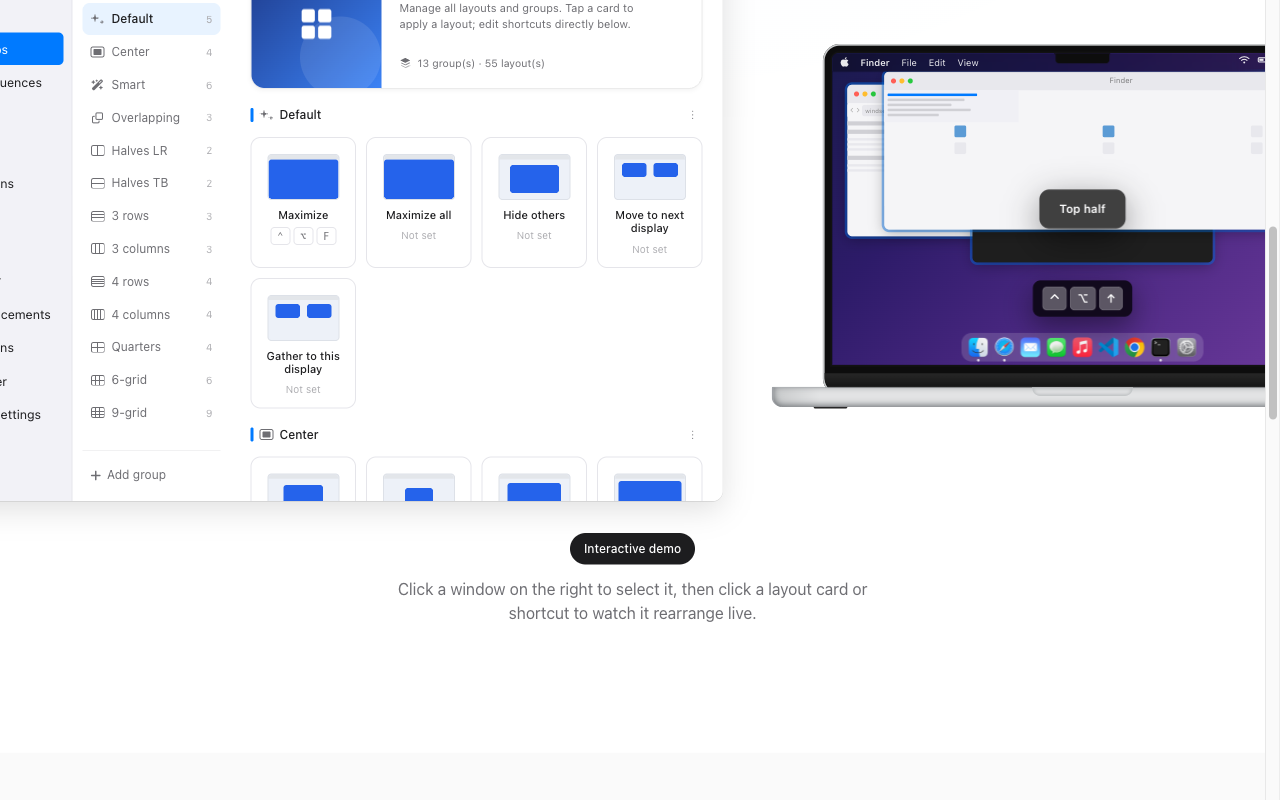
Instead of picking a shortcut for one snap action at a time, WindSpace organizes 55 layouts into 13 groups — halves, quarters, thirds-style grids, 6-grid and 9-grid arrangements, and more — so you can set up your Windows-style muscle memory once (left half, right half, maximize, move to next display) and then keep going into layouts Windows never had a built-in shortcut for either. It also supports leader-key sequences, so a single prefix key can fan out into a whole set of layout shortcuts instead of forcing every action onto its own modifier combination.
The bottom line
macOS Sequoia's native tiling closes the most basic version of the Win+Arrow gap, but the moment you want a keyboard shortcut you can actually customize, a saved multi-window layout, or reliable cross-display dragging, you're back to needing a dedicated tool — the same conclusion Windows switchers have been reaching in Apple's own support forums for years. Setting up WindSpace once, with shortcuts mapped to match your old Windows habits, is a direct path back to the muscle memory you already have.